







How to Refresh Your Workspace in Ten Minutes
A workspace does not need a complete makeover to feel fresh again. In just ten minutes, you can clear visual clutter, improve your setup, and create a more comfortable place to work.
This quick reset is useful at the start of the day, between tasks, or whenever your desk begins to feel distracting. The goal is not perfection. Instead, focus on a few small changes that make the space easier to use.
Why a quick workspace refresh helps
Your surroundings can influence how easy it feels to begin a task. Loose papers, empty cups, tangled cords, and unused items can make a desk feel crowded. A simple reset removes some of those distractions without requiring a large cleaning project.
A ten-minute refresh can help you:
– Find important items more quickly
– Create more room for current work
– Reduce visual distractions
– Improve comfort at your desk
– Start the next task with a clearer routine
Before you begin, set a timer for ten minutes. A time limit keeps the process focused and prevents you from getting pulled into unrelated organizing projects.
Minute one: Clear the obvious clutter
Start by removing anything that does not belong on your desk. Look for cups, food containers, mail, packaging, spare receipts, and items that have collected around your computer.
Use a simple three-part system:
- **Keep:** Items you use during the day
- **Move:** Items that belong somewhere else
- **Discard:** Trash, empty containers, and papers you no longer need
Do not worry about sorting every document or organizing every drawer. Place items that belong elsewhere in a small pile or basket so you can return them later. The main goal is to create open space quickly.
If your desk is already fairly tidy, focus on the area directly in front of you. Clearing enough room for your keyboard, notebook, or current project can make the entire workspace feel more manageable.
Minutes two and three: Reset your work surface
Once the obvious clutter is gone, wipe the main surfaces. Use a suitable cloth or cleaning wipe on the desk, keyboard area, and frequently touched objects.
Pay attention to:
– The space beneath your monitor
– The area around your mouse
– The front edge of your desk
– Your phone and phone stand
– Frequently used office tools
Follow the care instructions for electronic devices, and avoid putting liquid directly on screens or keyboards. A lightly damp cloth is often enough for many surfaces.
While wiping, return only the items you use regularly. A pen, notebook, water bottle, or small lamp may deserve a place on the desk. Items that are rarely used can go in a drawer, cabinet, or nearby storage area.
Minutes four and five: Manage cords and devices
Loose cords can make a workspace look untidy and may get in the way. You do not need a complex cable management system to improve them.
Try these quick adjustments:
– Group cords that run in the same direction
– Move chargers toward the back or side of the desk
– Remove cables connected to devices you are not using
– Use a small clip, tie, or hook to keep cords in place
– Make sure cables are not stretched across your main work area
If you use several devices, decide which ones need to stay visible. A tablet, second monitor, or speaker may be helpful, but unused devices can add visual noise. Put them aside if they are not part of your current work.
This is also a good time to check that your most-used items are within easy reach. Moving a charger, notebook, or headphones closer can save small amounts of time throughout the day.
Minutes six and seven: Improve your comfort
A refreshed workspace should feel better, not just look cleaner. Use two minutes to check your basic comfort.
Adjust your chair so your feet can rest comfortably and your arms can reach the keyboard without strain. Position your screen so you can view it without repeatedly bending your neck. If possible, keep frequently used objects close enough that you do not need to twist or stretch.
You can also make a few small changes:
– Place a cushion on a chair if it improves comfort
– Move a lamp to reduce shadows
– Open a blind or adjust a light source
– Clear space for both hands and your notebook
– Move a drink away from electronics
Comfort is personal, so choose adjustments that suit your body and your workspace. The purpose of this step is simply to notice what is making the area harder to use and correct one or two issues.
Minutes eight and nine: Choose a focus area
A workspace can support several activities, but too many visible projects can make it difficult to know where to begin. Choose one focus area for the next part of your day.
Place the materials for that task in front of you. This might include:
– A notebook and pen
– A printed document
– A design sketch
– A reading list
– A set of headphones
– A single open project on your computer
Move unrelated materials to the side or put them away. You are not finishing every task now. You are creating a clear starting point.
If you work digitally, close tabs and applications that are not needed for your next task. Save important work first, then leave only the tools that support your current goal. A simpler screen can be just as useful as a cleaner desk.
Minute ten: Add one personal touch
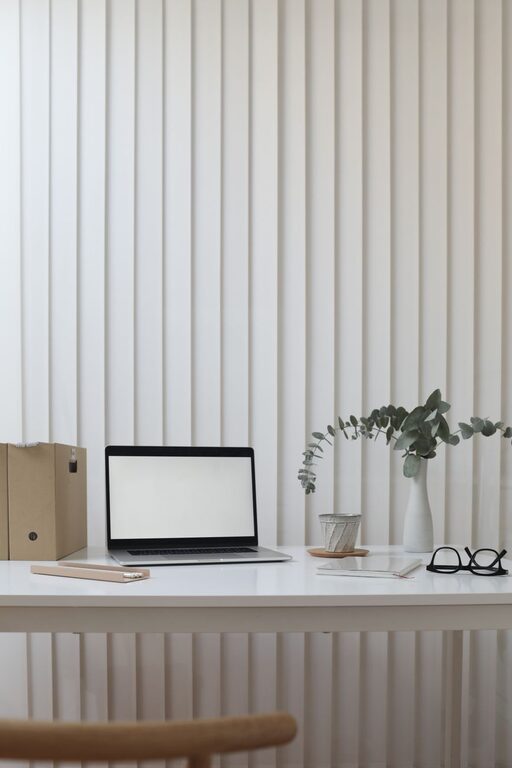
Finish with one small detail that makes the workspace pleasant to return to. This could be a favorite mug, a small plant, a photo, a simple piece of artwork, or a comfortable pair of headphones.
Keep the item intentional and avoid adding more clutter. The best personal touches make the space feel welcoming while still leaving room to work.
Finally, look at your desk from the position where you normally sit. Ask yourself three quick questions:
– Is the area clear enough for my next task?
– Are the items I need easy to reach?
– Is anything still distracting or uncomfortable?
Make one final adjustment, then stop when the timer ends.
Keep the reset easy to repeat
A ten-minute refresh works best when it becomes a simple routine. You can repeat it at the end of each workday or whenever your desk begins to feel crowded.
Consider using this short checklist:
– Remove trash and items that do not belong
– Wipe the main work surface
– Straighten cords and devices
– Adjust one comfort issue
– Set out materials for the next task
– Return one personal item to its place
Try not to turn every reset into a major organizing session. Larger projects can be scheduled separately. A quick daily refresh is about maintaining a usable space, not creating a perfect one.
A fresh start without a full makeover
Refreshing your workspace in ten minutes is a practical way to reset your attention and make your surroundings easier to use. By clearing the obvious clutter, improving comfort, and preparing for one specific task, you can create a noticeable change with very little effort.
The next time your desk feels crowded or distracting, set a timer and begin with the items closest to you. Small, consistent resets can keep your workspace welcoming, functional, and ready for the day ahead.